From a Facebook lead form to a WhatsApp reply
You connect your own Facebook Page and your own WhatsApp number — INUBIZ CRM is the workspace in between. Nothing here is shared with another company, and your Meta assets stay entirely yours. Most teams finish this in about fifteen minutes.
Before you start
You will need four things. If you already run lead ads, you almost certainly have all of them.
- A Facebook Page that runs — or will run — your lead ads.
- An admin role on that Page, or full control of it in Meta Business Manager. Editor is not enough: Meta only offers
leads_retrievalto people who fully control the Page. - At least one Instant Form. A draft is fine — you can connect first and create forms later, they will appear after the next sync.
- A WhatsApp Business number on the Cloud API if you want to reply from the CRM. This is optional; leads arrive whether or not WhatsApp is connected.
Leads created before you connect do not come back
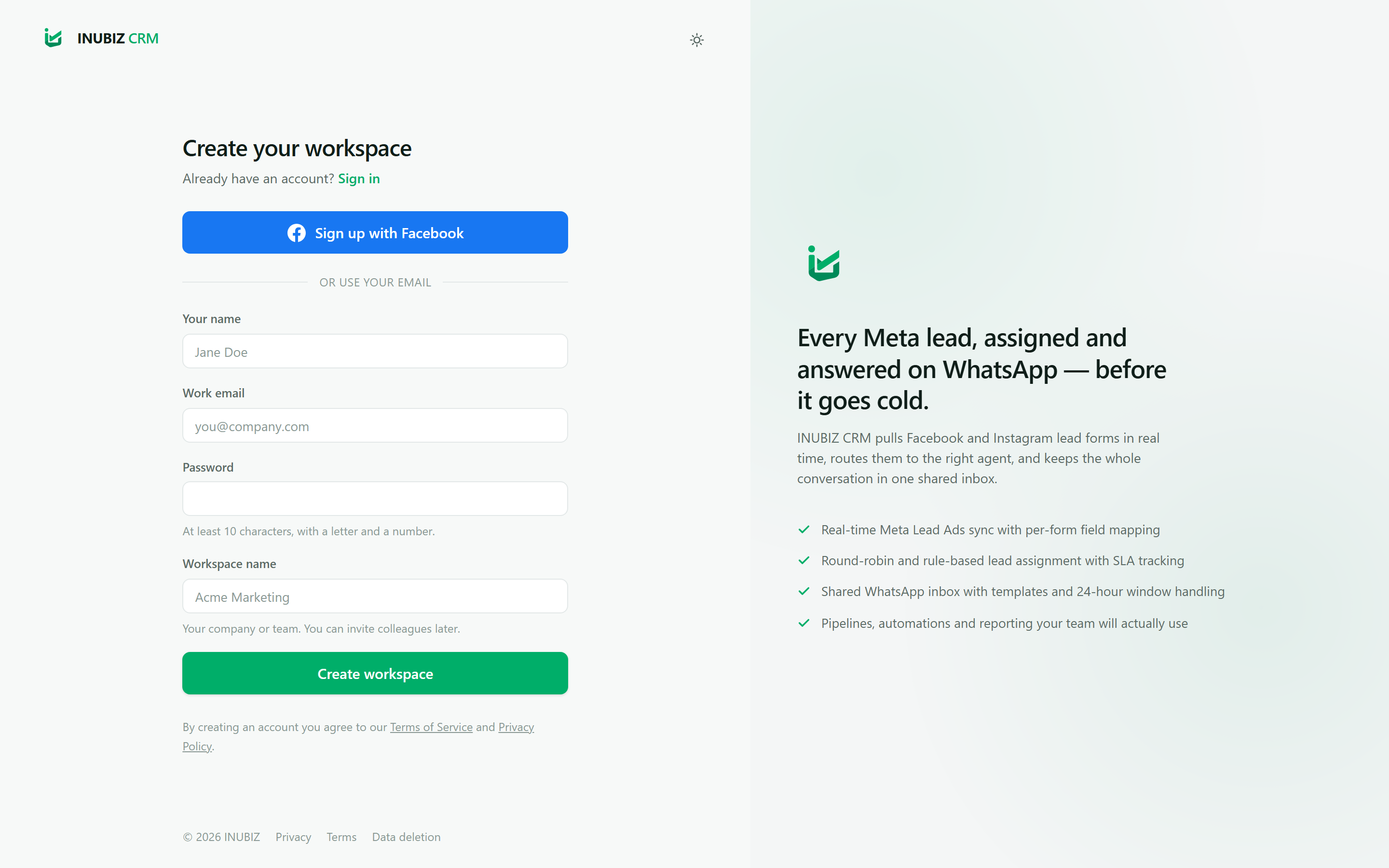
Create your workspace
Sign up at crm.inubiz.co/register with your work email, or use Continue with Facebook if you would rather not manage another password. Whoever creates the workspace becomes its Owner — the only role that can delete the workspace or transfer ownership.
Verify your email when the message arrives. Until you do, you can look around but you cannot invite anyone or connect an integration.
Connect your Facebook Page
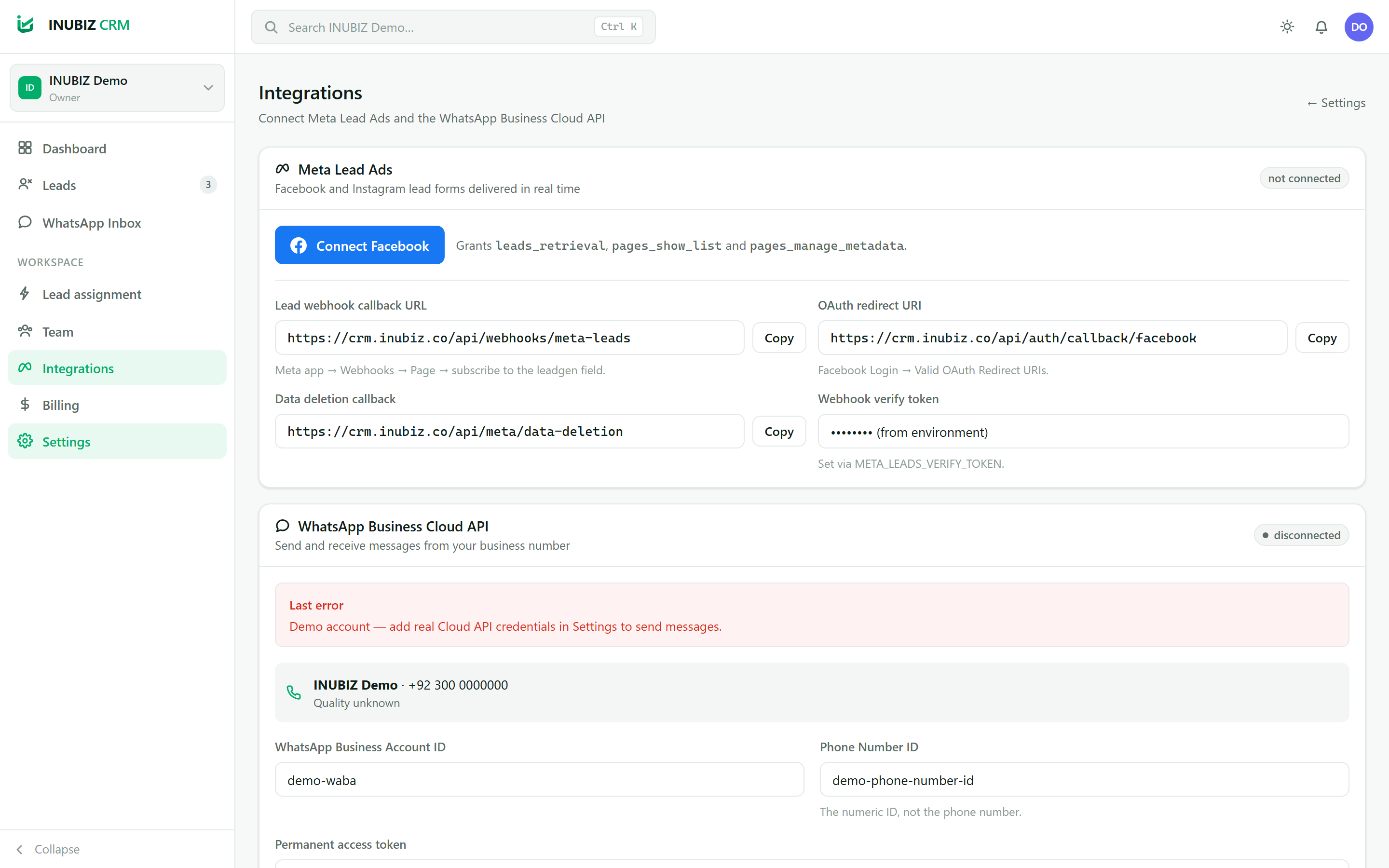
Go to Settings → Integrations and press Connect Meta. You will be sent to Facebook to approve access. INUBIZ CRM asks for exactly four permissions and nothing else:
pages_show_list— so we can show you which Pages you manage.pages_read_engagement— to read the Page’s forms.pages_manage_metadata— to subscribe your Page to the lead webhook.leads_retrieval— to fetch the answers a person submitted.
We never ask for ads_management or business_management. INUBIZ CRM cannot create, edit, pause or spend on your campaigns, and it cannot see your billing.
Back in the CRM, choose the Page you want under Choose a Facebook Page. The status should change to connected and subscribed. If it says not subscribed, see step 8.
Why the permissions screen sometimes looks empty
Pick your forms and map the fields
Once the Page is connected, its Instant Forms are listed. Turn on the ones you want flowing into the CRM. Anything left off is ignored, which is useful when a Page runs forms for several unrelated campaigns.
For each form you will see a field map: Meta question name on the left, CRM field on the right. The standard questions Meta ships — full_name, email, phone_number, city, company_name — map themselves. Custom questions need one click each.
Set a Default stage so new leads land somewhere sensible in your pipeline, and leave Use assignment rules on unless you want everything to sit unassigned.
Map the phone number, always
Decide who gets each lead
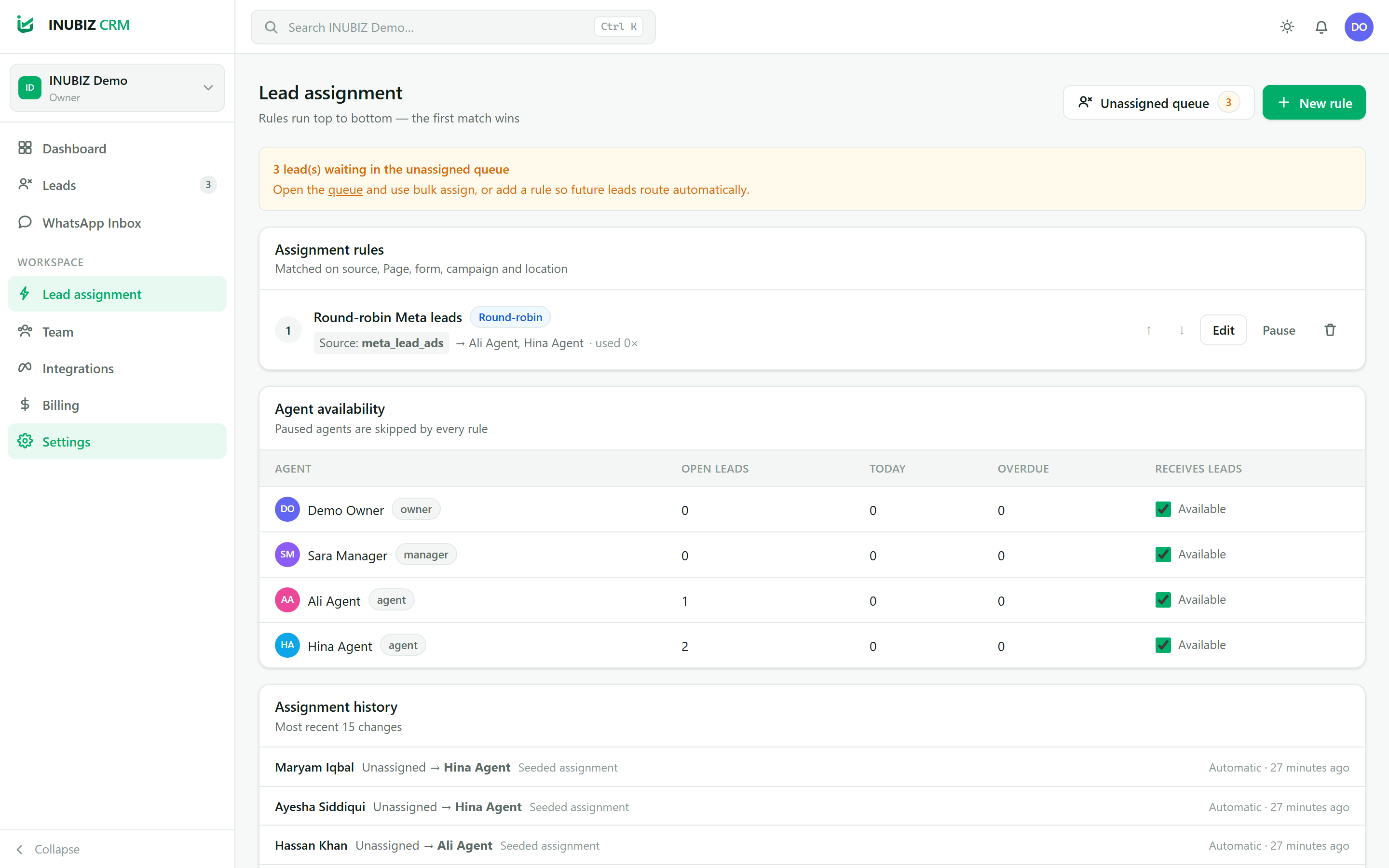
Settings → Lead assignment decides who picks up a new lead. A rule matches on Page, Instant Form, campaign or city, and then assigns one of three ways:
- Round robin — take turns. Fair, and the right default for a team of equals.
- Fewest open leads — whoever currently has the smallest queue. Better when agents work at different speeds or are part-time.
- A specific person — for a campaign one agent owns, or a language only one person speaks.
Leads that match no rule stay unassigned and show up in the dashboard’s Unassigned tile, so nothing quietly disappears.
Invite your team
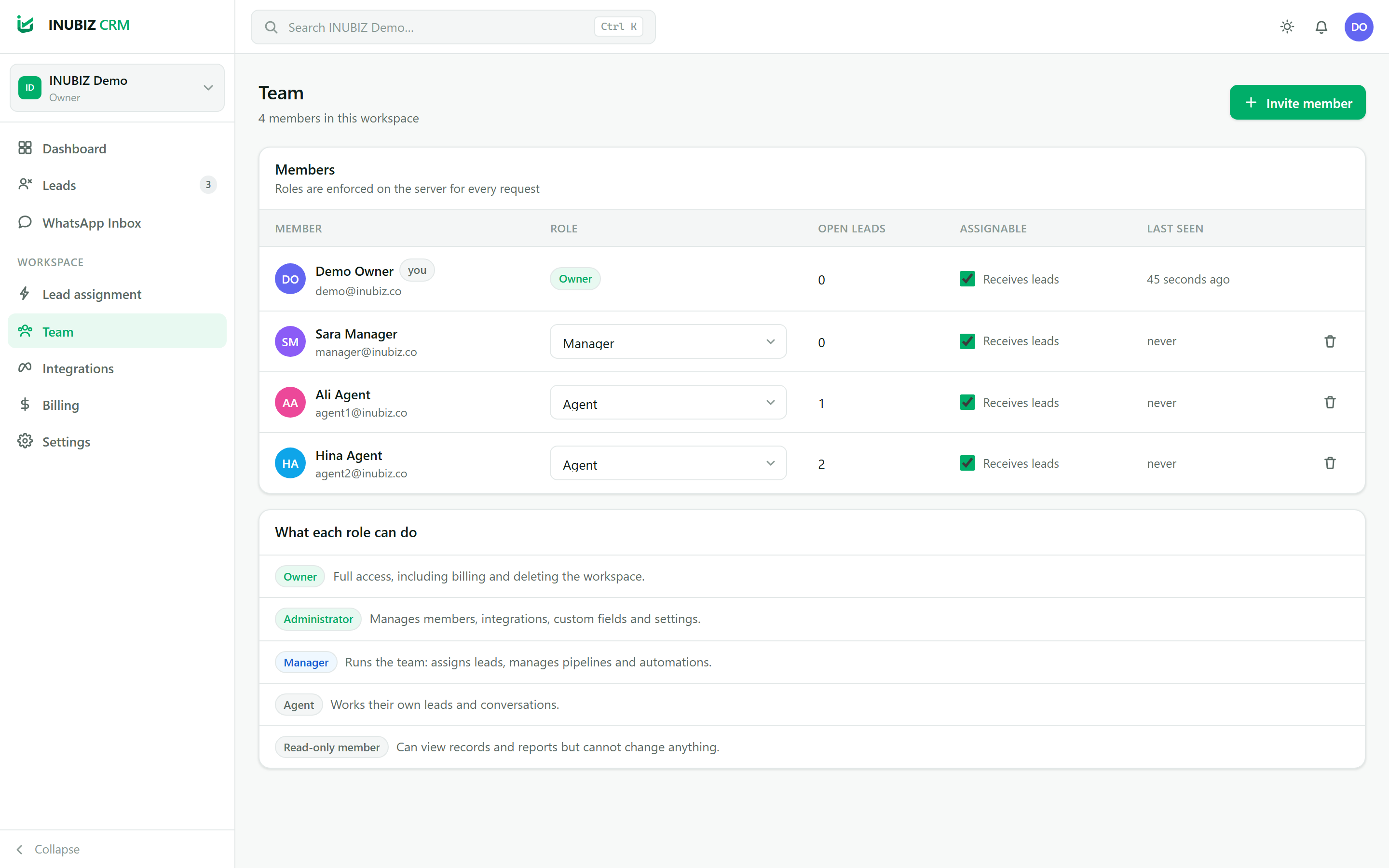
Invite people from the Team page. Pick a role deliberately, because roles decide what the API will do:
- Owner — everything, including deleting the workspace and billing.
- Administrator — everything except deleting the workspace.
- Manager — sees all leads, reassigns, imports, merges duplicates and reads reports.
- Agent — sees the leads they own plus anything unassigned, and replies on WhatsApp.
- Read-only — can look, cannot change anything. Useful for an accountant or a client.
Connect your WhatsApp number
You connect your own WhatsApp Business account, not one of ours. Your number stays yours, your access token is yours, and Meta bills your account directly for conversations — INUBIZ never sits in the middle of that. It takes four moves.
a. Add WhatsApp to a Meta app
In your app at developers.facebook.com, go to Use cases → Add use cases → Connect with customers through WhatsApp → Save. Meta gives you a free test number immediately, so you can prove the whole flow works before touching your real one.
b. Collect three values
Open Connect on WhatsApp → Customize → Step 1. Try it out and copy:
- WhatsApp Business Account ID — identifies the account.
- Phone Number ID — the numeric id of the number, not the number itself.
- An access token. The one shown here expires in 24 hours, which is fine for a first test. For real use, create a System User in Business Settings and generate a permanent token with
whatsapp_business_messagingandwhatsapp_business_management.
c. Paste them into the CRM
In Settings → Integrations → WhatsApp, fill in those three values, then invent a webhook verify token — any long random string, you choose it. If you created your own Meta app in step (a), also paste that app’s app secret: Meta signs every delivery with it, and we need it to prove the messages arriving really are yours. Save.
Your access token and app secret are encrypted before they are stored, are never shown again, and are never returned by any API — the screen only ever tells you whether one is saved.
d. Point Meta back at the CRM
Return to Step 2. Production setup → Configure Webhooks and enter:
- Callback URL — the WhatsApp webhook URL shown on the CRM’s Integrations page.
- Verify token — the same random string you just invented.
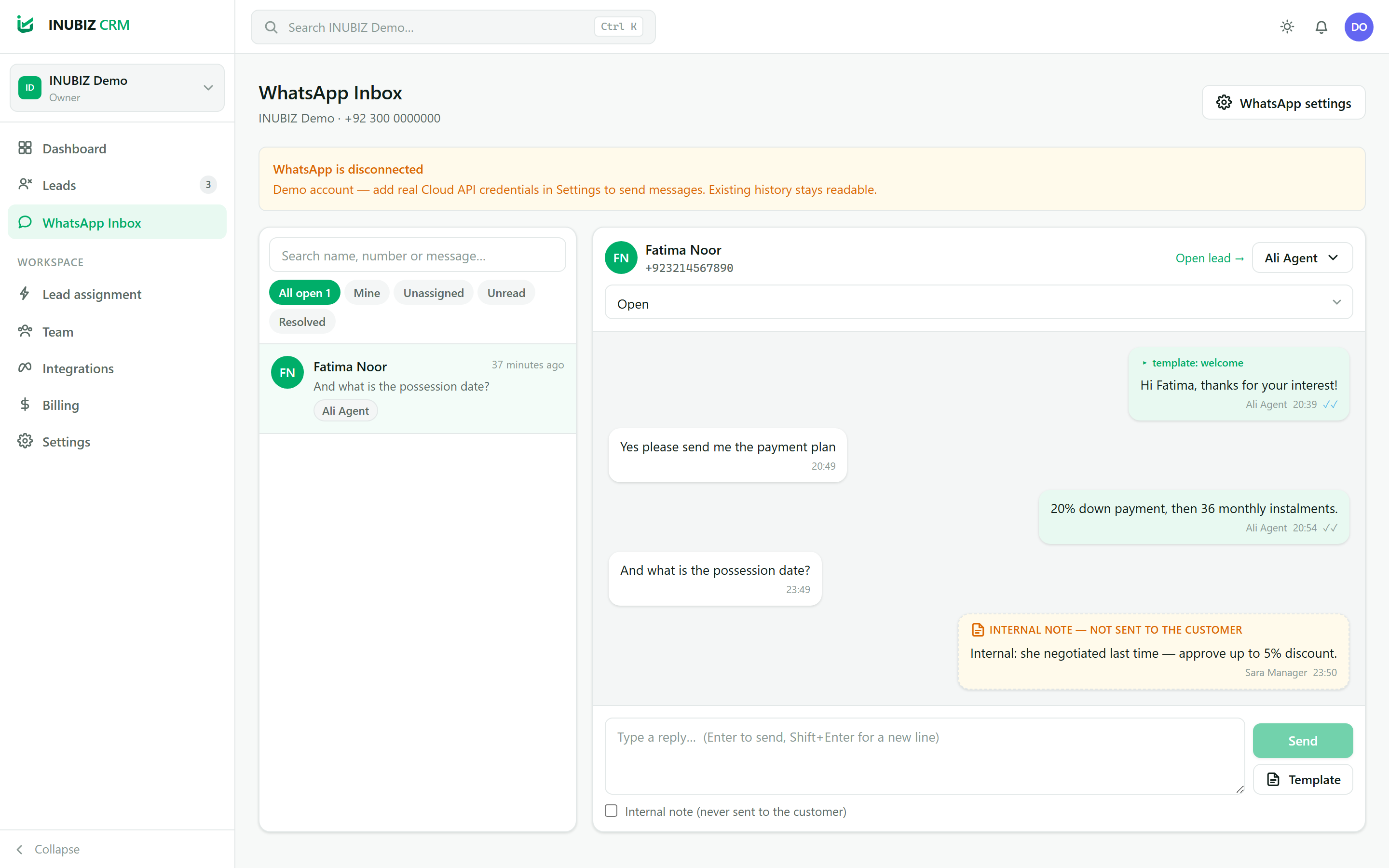
Press Verify and save, then subscribe to the messages field. Send a WhatsApp message to your number: it should appear in the CRM inbox within a few seconds.
Two things Meta requires before real messages flow
The 24-hour rule is not ours
Work the queue
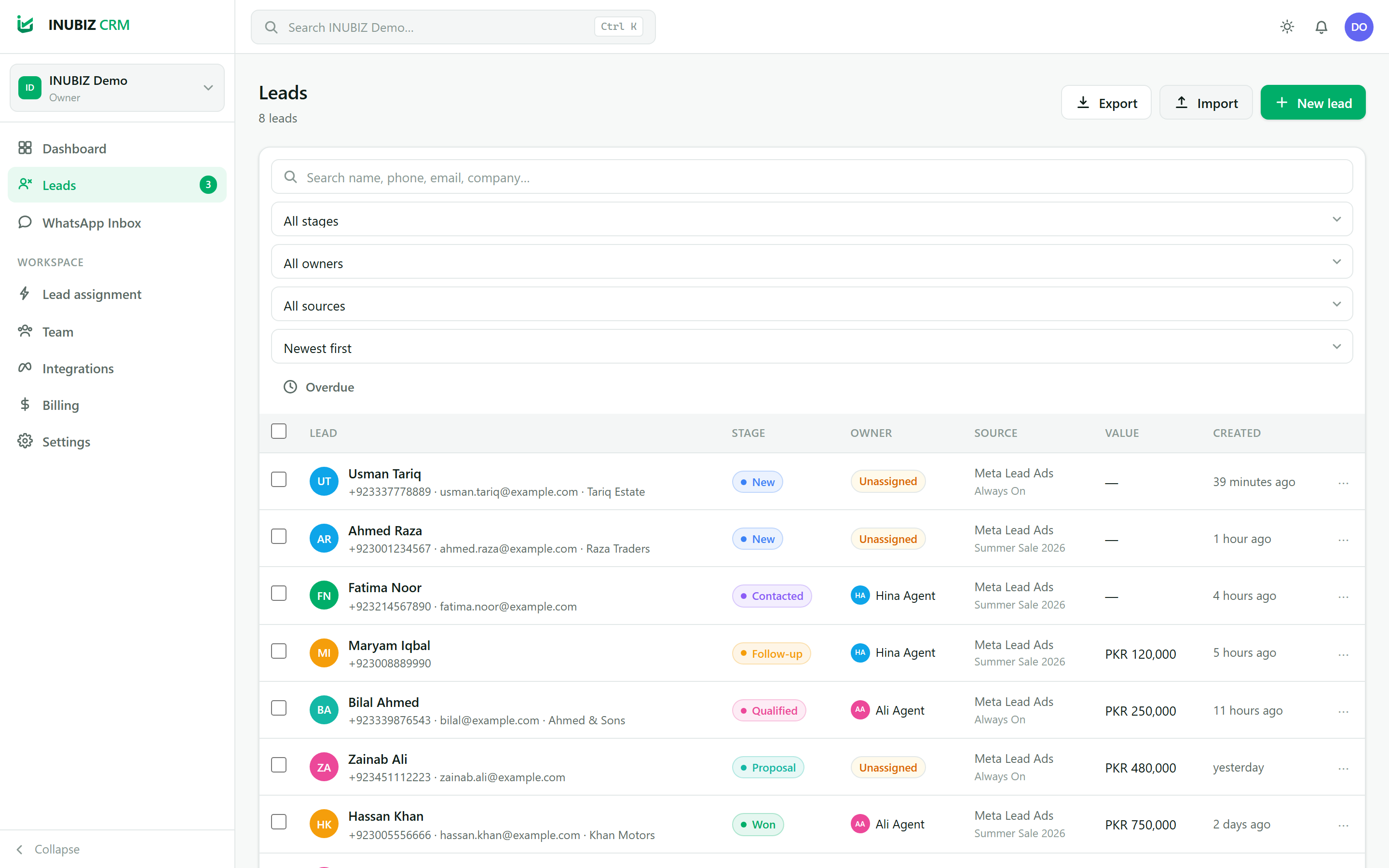
A new submission appears in Leads within a few seconds, carrying the campaign, ad set and ad it came from — so you can tell which creative actually produces customers, not just clicks.
Open a lead to see the full form answers, move it through your pipeline, leave an internal note, or start a WhatsApp conversation without leaving the record.
When leads stop arriving
Open Settings → Integrations and look at Recent webhook deliveries. It is the fastest diagnosis you can make, because it tells you which side of the connection is at fault.
- Deliveries are listed and look healthy. Meta is reaching you and the lead is in the CRM — check your filters, and whether the lead was assigned to someone whose queue you are not looking at.
- No deliveries at all. Meta is not calling you. The Page is usually unsubscribed: reconnect from the Meta panel, which re-subscribes it.
- Deliveries with an error. The token has most likely expired or been revoked — someone changed their Facebook password, or removed the app. Press Connect Meta again.
- A form is missing. Forms created after your last sync appear on the next one. Trigger a sync from the Meta panel.
Still stuck? Send what you see under Last error to info@inubiz.co and we will look at it with you.
Ready to connect your Page?
Create a workspace, connect Meta and watch your next lead arrive in seconds.